Burning bike telemetry into race video
A cross-platform desktop app that syncs FIT data from a bike computer to action-camera footage and burns speed, power, heart rate, and a GPS map into the finished video.
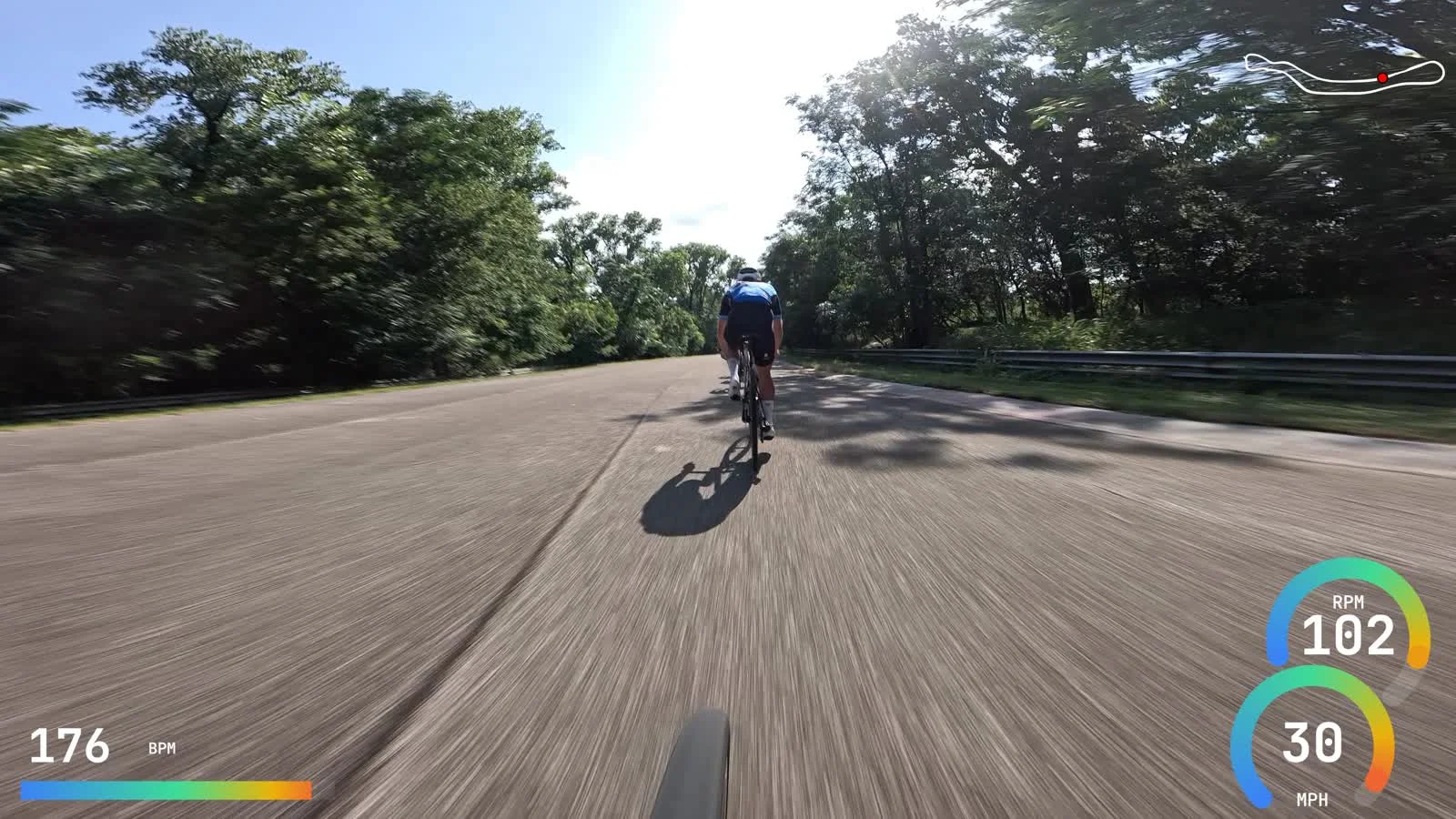
I race bikes and like to film those races. I use an action camera mounted on the front of my bike, under my bike computer. That computer records speed, cadence, power and GPS location to a FIT file. I can correlate this information with the video to make a telemetry overlay. This way you can see directly on the footage how fast you were going, how much power you were producing or how long the race has been on for.
Existing apps already did this, but they were either too expensive, out of date and unmaintained or did not offer a level of customization that made them usable.
So I built Digital Gauges, a desktop app that addresses those issues.
What it does
You bring two things: video from any action camera, and a FIT data file from a bike computer or watch. The video supplies picture and timing only. Everything else comes from the FIT file: speed, power, heart rate, cadence, GPS position, altitude, and temperature. No camera-specific app and no telemetry extraction step. If the camera recorded its own GPS, the app can use it to line up the clocks, but the gauges always draw from the FIT file.
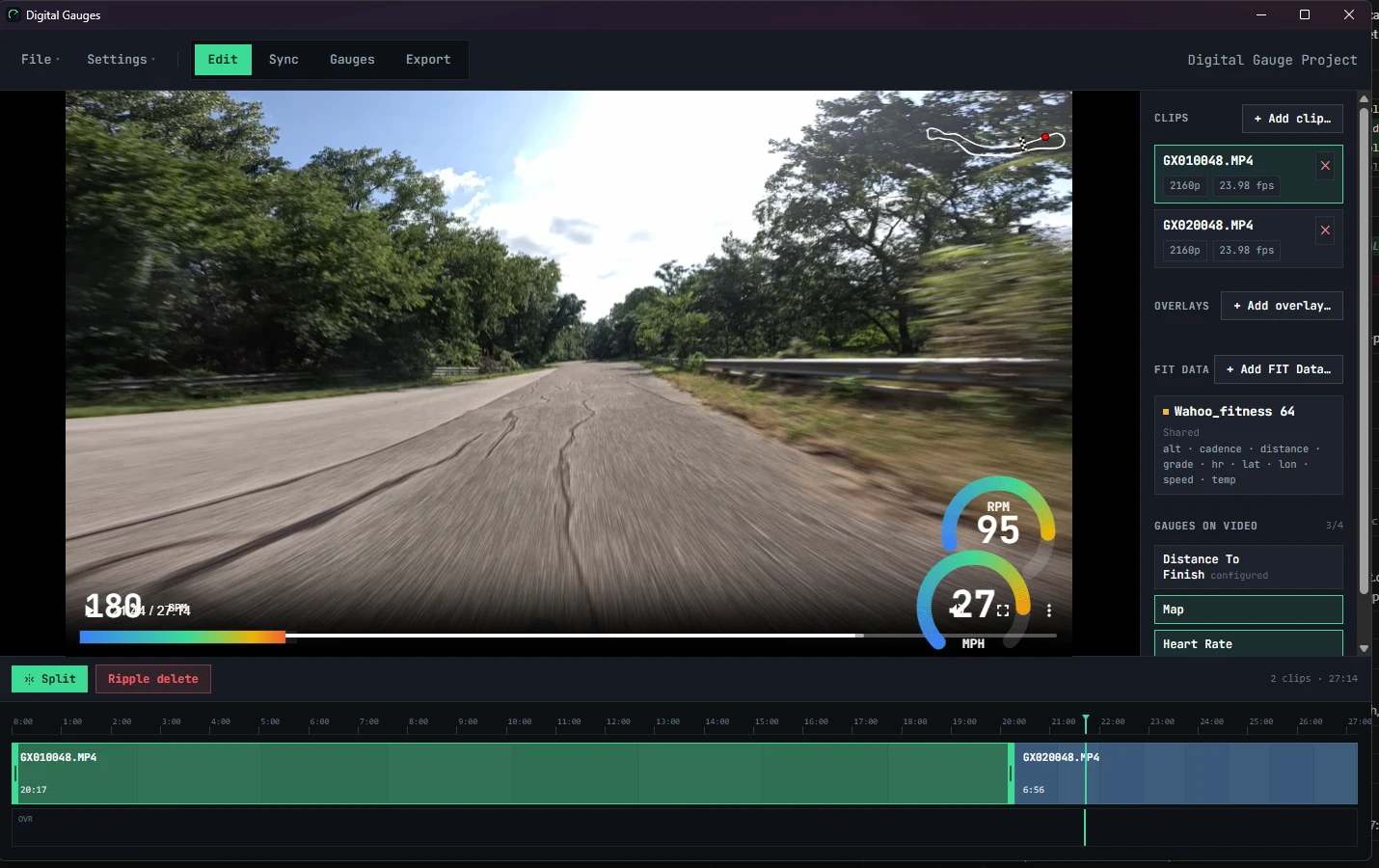
From there the workflow has four tabs:
- Edit. Preview the video with live gauges, arrange clips on a timeline, split and ripple-delete.
- Sync. Line the data up with the video. More on this below.
- Gauges. Pick gauges and style them, or import a saved template.
- Export. Render a finished MP4 or MOV.
Sync is the real problem
One of the challenges with having two separate sources for the video/audio and telemetry is synchronizing the two together afterwards. You cannot trust the onboard timestamps; these can be wildly out of sync, and the tolerance is ~1s. The tolerance gets even tighter when power numbers are included. Large power jumps (e.g. attacks or when stopping pedaling) are obvious in the video, so any desynchronization is easy to identify. How tight depends on the telemetry rate: how often the value is sampled and recorded in the FIT file.
Some action cameras have the option to record GPS data, and GPS time is accurate UTC whatever the camera's clock says. In one sample GoPro file the camera clock was off by more than a day, while its GPS timestamps were exact. An earlier version of the app used camera GPS, but it decoded every bit of camera telemetry on import and was too slow, so it was removed. It is back now, rebuilt to read only what it needs.
Since the internal clock of each source cannot be relied on, the app offers several ways to align them:
- UTC timestamps. The video container records a creation time, and the FIT file records when the ride started. If both clocks were right, the offset falls out directly. This works when the camera clock was set, which is rarer than it should be.
- GPS auto-align. For GoPros that record GPS (most models from the HERO5 Black on, except the HERO12), the app reads the camera's own GPS timestamps to find the true UTC time of the first frame, then lines the FIT file up against it. A quick check reads only the file's index and a few telemetry samples, never the video, so a file with no GPS (any HERO12, for example) is ruled out in a couple of milliseconds. A speed cross-check against the FIT file flags the result if the two disagree. Insta360 footage from the GPS remote is supported experimentally, and DJI is detected but not decoded yet.
- Video start or end. Pin the start of the FIT data to the start or end of a clip, which works when you started recording and the ride at the same moment.
- Visual sync. A manual panel stacks the FIT signals as waveforms against the video. You scrub to a moment you can see, such as a hard stop or a standing start, and adjust the offset in milliseconds until the values match. You can also pin the FIT start or end to the playhead.
Footage often arrives as several files, because action cameras split recordings into chapters, so the timeline treats a project as a series of clips and the sync works across the whole concatenated span.
Gauges are code
The main built-in is a configurable data gauge: bars, arc dials, text readouts, and a GPS mini-map, each bound to any telemetry field. Gauges are drawn with the canvas API, and each one is a function that takes the telemetry at one moment in time and paints into a rectangle. There is also a history argument for rolling averages over recent samples, such as 3-second power, so a gauge can show smoothed numbers without storing any state of its own. The data gauge exposes the same thing as a Smoothing setting on each readout.
That shape made it easy to open up. Drop a *.gauge.tsx file into a folder and the app compiles it with esbuild and hot-reloads it into the running app:
const plugin: GaugePlugin = {
  id: 'user:cadenceBig',
  name: 'Big Cadence',
  fields: ['cadence'],
  defaultRect: { x: 0.40, y: 0.74, w: 0.20, h: 0.18 },
  defaultConfig: { color: '#10b981' },
  schema: { /* JSON Schema for the settings panel */ },
  renderToCanvas(ctx, frame, config, rect, dpr, history) {
    // 3-second rolling average, falling back to the live sample
    const rpm = history.average('cadence', 3000) ?? frame?.cadence ?? 0;
    ctx.fillStyle = 'rgba(0,0,0,0.5)';
    ctx.fillRect(rect.x, rect.y, rect.w, rect.h);
    // ...draw rpm
  },
};
The plugin declares a JSON Schema for its settings and the app generates the settings form from it. If the file fails to compile or load, the error is caught and the rest of the app keeps working. Styled gauges and whole layouts can also be saved as JSON templates and shared.
Burning it in
To keep the preview fast, so a user can make quick edits to the timeline or gauges without waiting for a whole export, the app plays a downsized copy of the video. The full-resolution originals stay on file, and the export works from those. The preview and the export draw gauges with the same canvas code, so what you see in the editor is what lands in the file.
For export, the renderer draws each frame's overlay as a transparent RGBA bitmap and sends it to the main process. The main process pipes those raw frames into an FFmpeg process on stdin. FFmpeg decodes the original video, composites the overlay stream on top with its overlay filter, and encodes the result. H.264 and HEVC are available, plus ProRes 4444, which can carry an alpha channel.
renderer: canvas  →  RGBA frame  →  IPC  →  main
                                             │ stdin (rawvideo)
                          source video  →  ffmpeg  →  overlay  →  libx264  →  MP4
Streaming raw frames means nothing is written to disk between steps, but it needs care:
- Memory budget. A 4K RGBA frame is about 33 MB. Before an export starts, the app checks that several frames' worth of buffers fit inside a fraction of free RAM and refuses with a clear message if they do not, instead of dying partway through a long render.
- Frame accounting. For multi-clip projects the app exports one segment per clip and concatenates them. It counts frames sent against frames expected for each segment and fails loudly on a mismatch, because a silent off-by-one would drift the overlay out of sync.
Stack
- Electron with electron-vite, so the main process is Node and the UI is a Vite renderer
- React 19, TypeScript, Tailwind CSS, and Zustand for state
fit-file-parserfor FIT filesffmpeg-staticandffprobe-static, so users do not need to install FFmpeg
Packaging uses electron-builder, with a Windows installer, a macOS DMG, and a Linux AppImage. A CI pipeline builds each platform and checks the release version on pull requests.
A few small test scripts cover the places where bugs are easy to introduce and hard to see: overlay timeline math, preview concatenation, trim/sync arithmetic, rolling averages, and camera GPS decoding. The GPS tests build synthetic GoPro and Insta360 files on the fly, so no camera footage lives in the repo. They all run without launching the app.
Where it could go
The obvious gap is automatic sync for cameras without GPS. Visual sync works, but it is a manual step, and one idea is to match motion in the video against speed in the FIT data. GPS sync itself can also reach more cameras: DJI's GPS format is documented well enough to decode next, and Insta360 support needs real GPS-remote footage to move past experimental.
User gauges also need a proper home in the Gauges tab, so plugins can be picked from a list and load errors show up there. More gauge styles are another direction, and the plugin format makes those easy for other people to contribute.
The source is on GitHub under the MIT license.